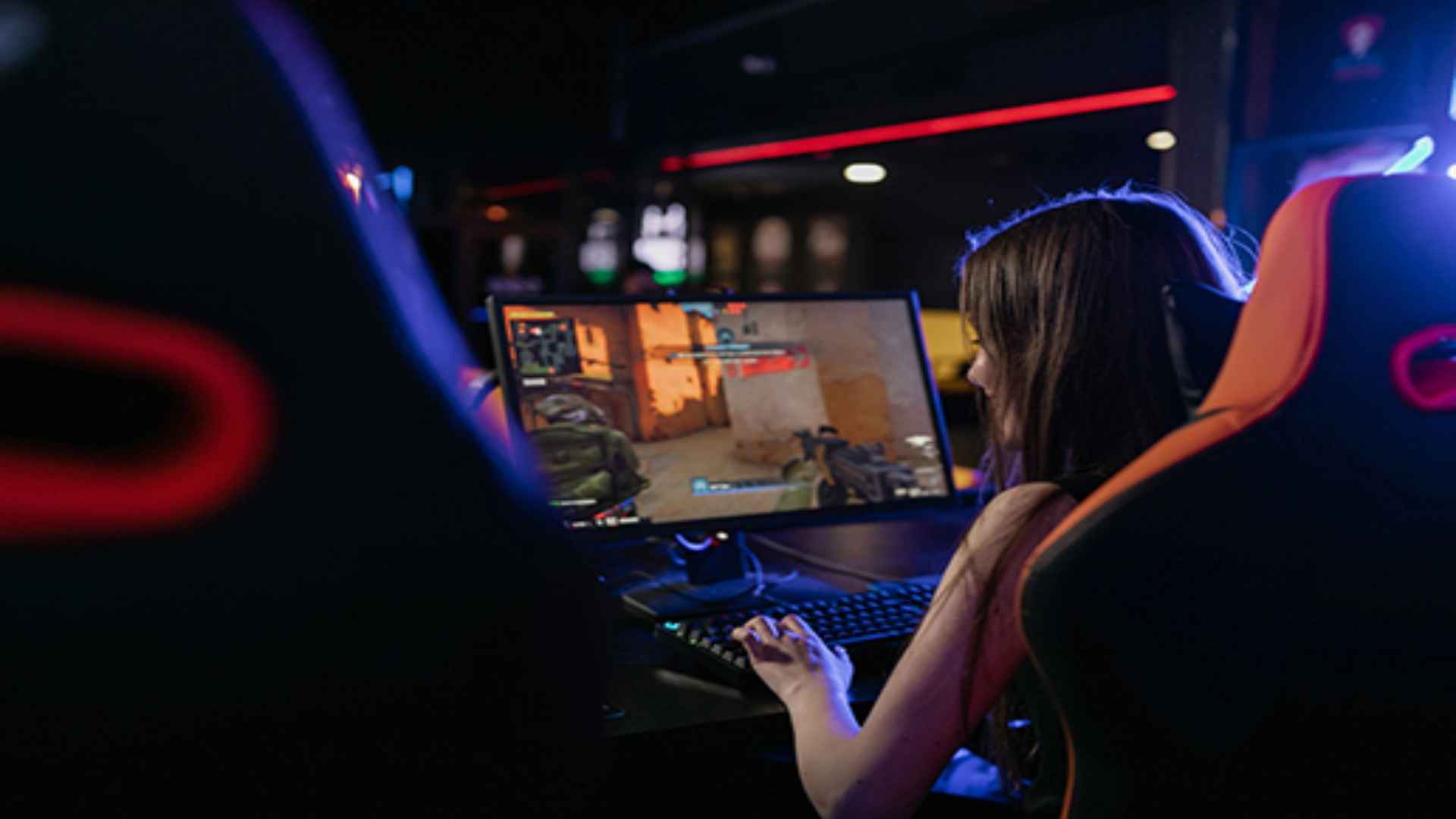
The PlayStation 5 natively supports keyboard and mouse controls, allowing players to enjoy a PC-like experience on their gaming console. While the system hardware accommodates these peripherals effortlessly, game compatibility depends entirely on individual developers. Understanding how to set up your gear and which titles offer full support will help you make the most of this control method.
How to Connect Keyboard and Mouse to PS5
Connecting wired peripherals to your PlayStation 5 is as simple as plugging them into the available USB ports on the front or back of the console. The system automatically detects the connected accessories and displays a prompt confirming their recognition. You can immediately use the keyboard to navigate certain menus or enter text efficiently.
Wireless devices using Bluetooth or USB dongles are also fully supported by the system settings. To pair Bluetooth accessories, navigate to Settings, select Accessories, and enter General settings to register your Bluetooth devices. Once paired, you can customize pointer speed, key remapping, and layout preferences in the console settings menu.
Popular PS5 Games That Support Keyboard and Mouse
Many competitive multiplayer titles and strategy games on PS5 natively support keyboard and mouse inputs. Popular first-person shooters like Call of Duty, Fortnite, and Overwatch 2 allow seamless switching between DualSense controllers and traditional PC controls. Playing these titles with a mouse offers higher precision and faster aiming adjustments during intense matches.
Simulation and strategy titles such as The Sims 4 and Final Fantasy XIV also benefit greatly from keyboard navigation and mouse cursor control. Using a dedicated gaming keyboard makes managing complex interface menus and communication chats significantly faster. Players can easily organize skill bars and type quick tactical messages to teammates during raid battles.
Configuration Settings and Key Adjustments
After connecting your devices, adjusting input sensitivity is essential for achieving optimal control in supported games. The PS5 system menu lets you modify pointer speed, repeat delay, and key repeat rates. Most supported games also provide in-game settings to adjust mouse look sensitivity and keybindings independently.
It is worth noting that non-supported games will not respond to keyboard and mouse inputs even when the console recognizes the hardware. Developers sometimes restrict alternative inputs in competitive titles to maintain fair matchmaking pools. Always check individual game options to verify whether native keyboard and mouse functionality is enabled before playing.